Now what does rtcirqus actually do?

To answer that question let’s assume the following:

  • You want to do real-time audio, for instance you would like to do an overdub in a song project by using a MIDI keyboard and a soft synth.
  • You’re using a USB audio interface.
  • You’re experiencing xruns when using lower buffer sizes (64 or even lower) that result in crackling audio.

Basically all components of a desktop computer or a laptop have an IRQ. Let’s say IRQs are some sort of communication lines between the brains of your computer (the CPU) and those components. All these communication lines are more or less the same as in, none of these communication lines has priority over the other. But if you suffer from bad audio quality caused by xruns then giving the communication line that is connected to your USB device more priority than the rest could alleviate the audio issues.

This is where rtcirqus could be helpful. What rtcirqus does is detecting your USB audio interface when it gets connected, then it figures out what the IRQ of the USB bus is that your audio interface is connected to and raises the priority of the IRQ attached to that USB bus. In other words, rtcirqus gives the communication line between the USB bus that your audio interface is connected to and the CPU of your computer a higher priority. This higher priority translates into other communication lines being throttled and giving the communication line of our USB audio interface more room to transfer and receive its audio data.

rtcirqus needs to be able to prioritize that communication line though and this is where the threadirqs kernel option is for, it creates so-called threads of all available IRQs on a computer. Threads are more or less like processes running on your computer, with threadirqs enabled you can list them as such with a command like ps -eLo cmd | grep '^[irq'. So make sure this kernel option has been added to the kernel command line. In case you’re using a real-time kernel this isn’t needed as a real-time kernel uses threaded IRQs by default.

So if you find yourself in such a situation, head over to https://codeberg.org/autostatic/rtcirqus and give rtcirqus a try, maybe it helps you achieving lower latencies with your USB audio interface while retaining a clean audio output signal.
Now what does rtcirqus actually do?

RME Digiface USB on Linux

With the release of the 6.12 kernel the RME Digiface USB is supported under Linux. Since this is a very portable device with lots of IO (32 in and 34 out) it got on my radar as a possible candidate for making recordings at my rehearsal space. It took a while before I stumbled upon a second hand unit but in the end I managed to find one nearby. Hooked it up to my notebook with an up-to-date Liquorix kernel and it worked out of the box.

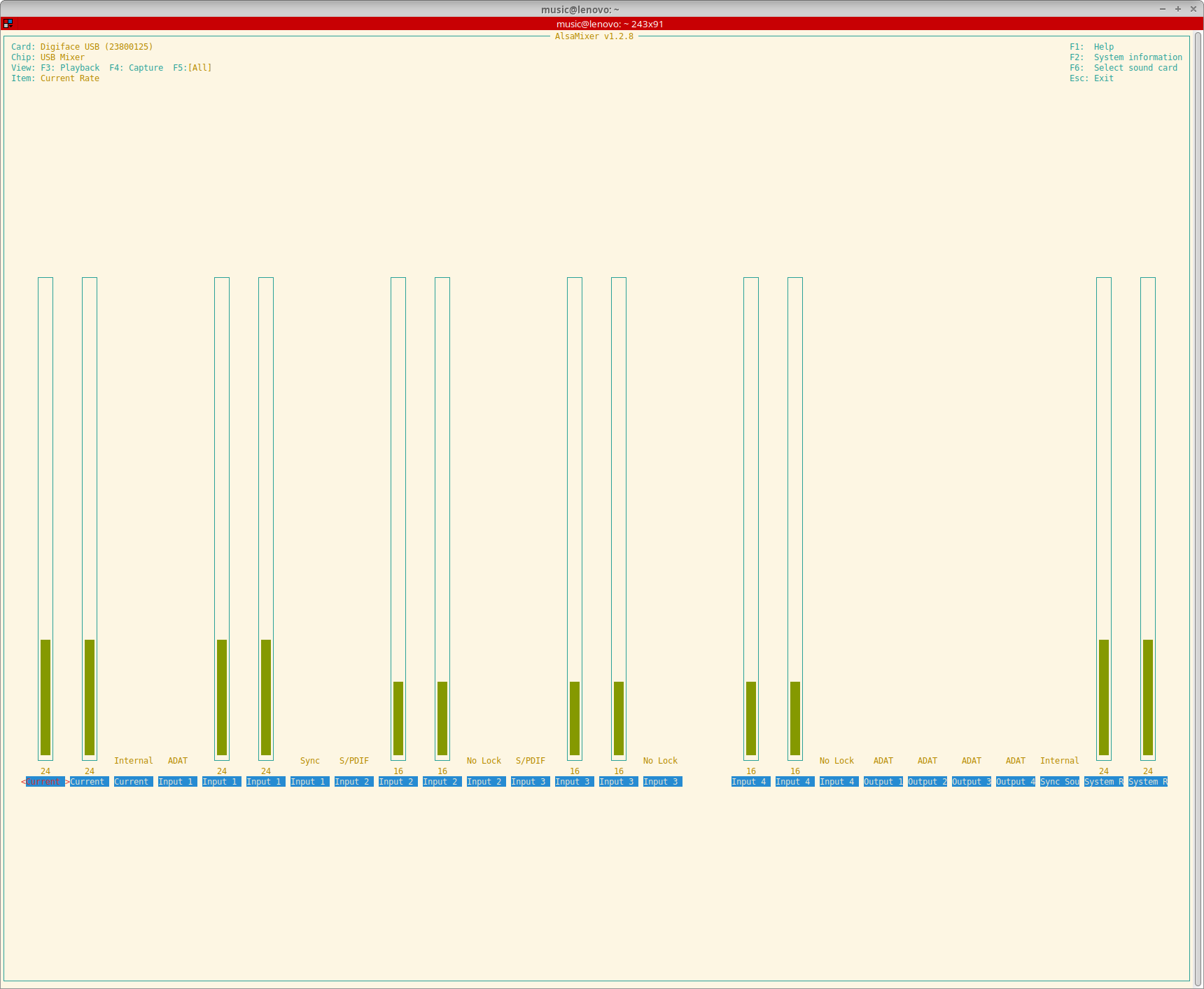
A lot of thanks go out to Asahi Lina for adding support for the RME Digiface USB to the 6.12 kernel. She even added the possibility to control the output format and clock source and to monitor sample rates, input formats, input sync statuses and the current sync source.

Screenshot of AlsaMixer showing all the controls available for the RME Digiface USB

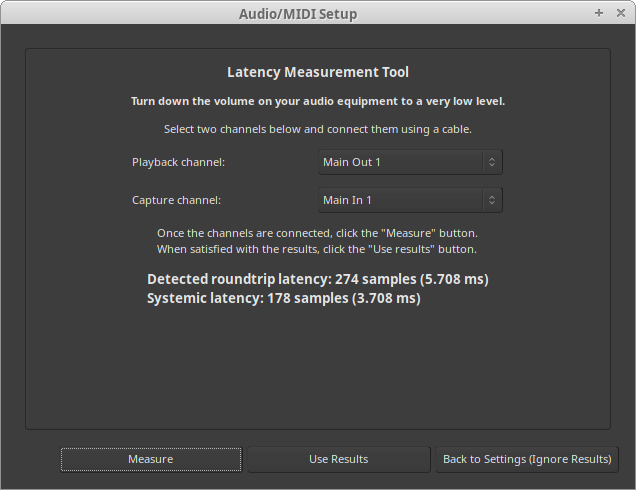
Have yet to test the Digiface USB with more than one ADAT device but with one device (a Behringer ADA8200) everything seems to work really well. Did some round-trip latency tests and with a buffer size of 16 samples and putting TotalMix in DAW mode (which had to be done on a different OS unfortunately but saved another 0.2 ms) I got it down to approximately 4.2 ms. Systemic latency with a buffer size of 16 samples and a sample rate of 48 KHz is 2 ms so somewhere a bit more than 2 ms of additional latency gets added. I think about 1.4 ms gets added by that converters if I did my maths right. According to the specs of the converters they add 22 samples (10 in and 12 out at 48 KHz). That leaves about 0.8 ms unaccounted for. Probably the USB bus buffer or something in the driver stack. Well, no real deal-breaker for me.

This image has an empty alt attribute; its file name is image-2.png
Ardour round-trip latency measurement with a buffer size of 32 and a 48KHz sample rate

Because I’m still on Debian 12 I couldn’t fully use the device with PulseAudio though. PulseAudio only supports devices with up to 32 channels in or out and since the Digiface has 34 output channels PulseAudio refused to output any audio through it. As a fix I added the following to the ~/.asoundrc file in my home directory:

pcm.snd_rme_digiface_usb {
    type multi
    slaves.rme.pcm "snd_output"
    slaves.rme.channels 34
    bindings.0.slave rme
    bindings.0.channel 32
    bindings.1.slave rme
    bindings.1.channel 33
}

pcm.snd_output {
    type hw
    card USB23800125
}

To make PulseAudio pick up this extra snd_rme_digiface_usb device I added the following to ~/.config/pulse/default.pa:

# RME Digiface USB
load-module module-alsa-sink device=snd_rme_digiface_usb

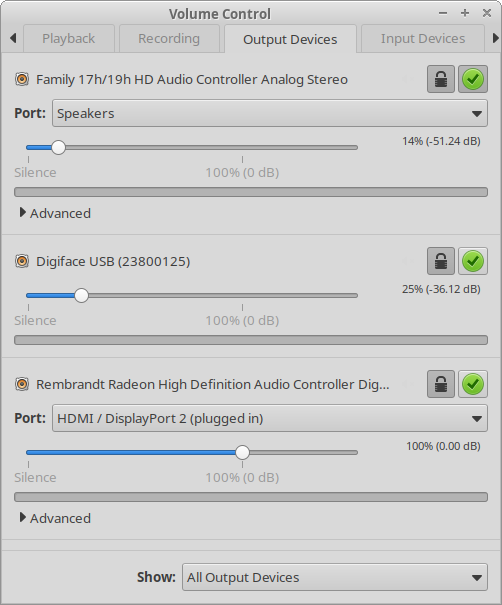
And now I can select the Digiface as an output source and use the phones output in a desktop session.

Screenshot of pavucontrol with the RME Digiface USB right in the middle

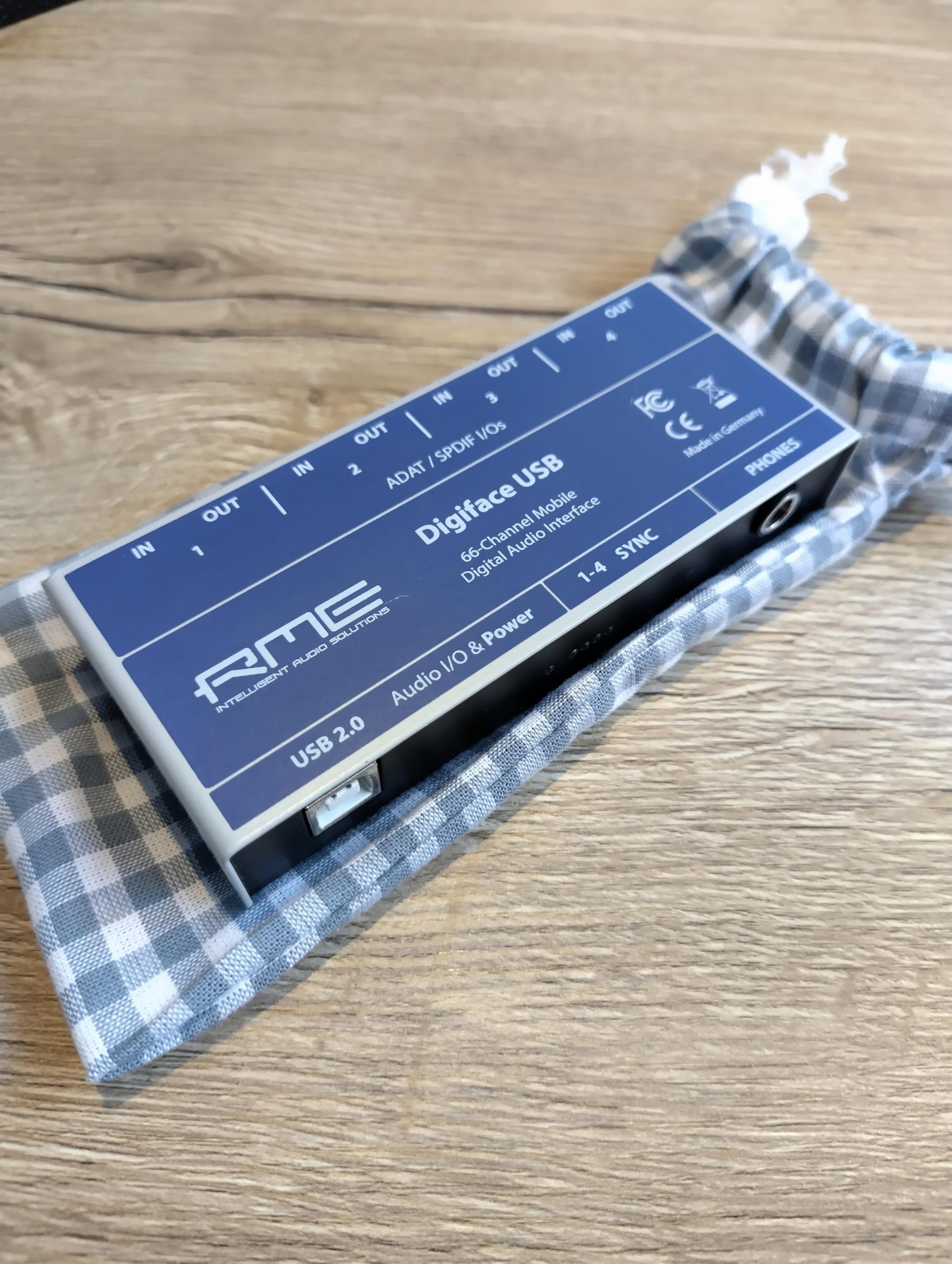
Another big bonus is the custom pouch my daughter made for it. I can now toss it in my bike bag without having to worry about dings or scratches.

RME Digiface USB tucked in a custom cotton pouch
RME Digiface USB on top of its custom cotton pouch

RME Digiface USB on Linux